Calendar
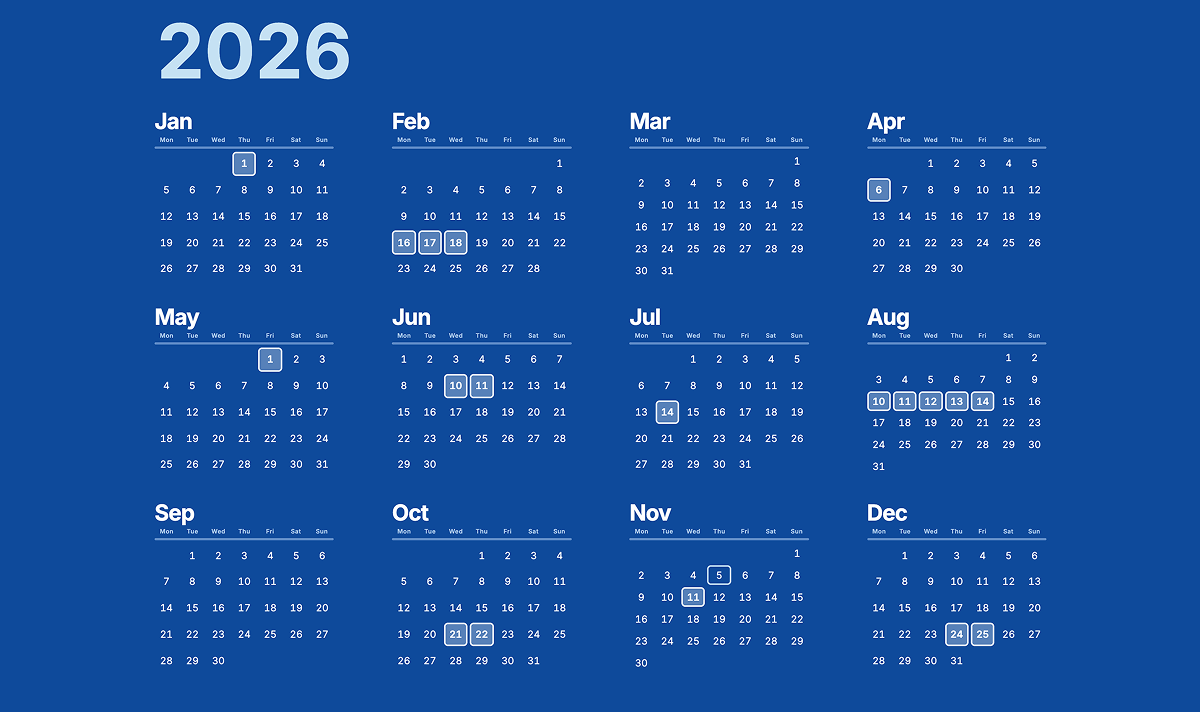
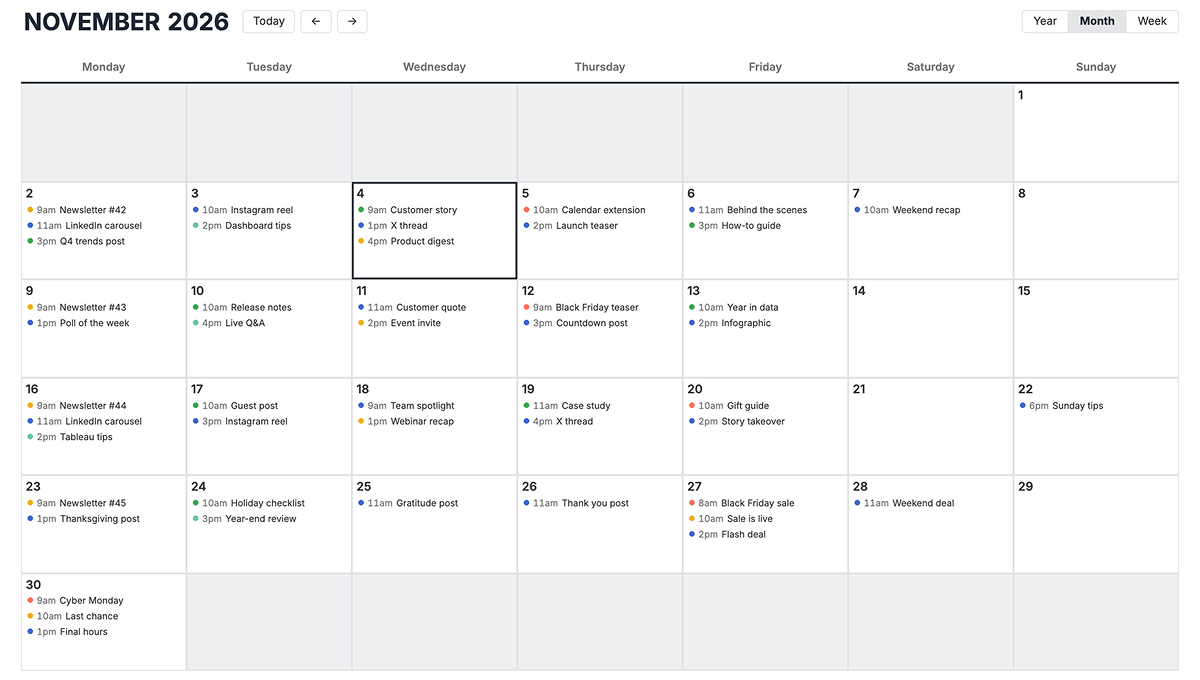
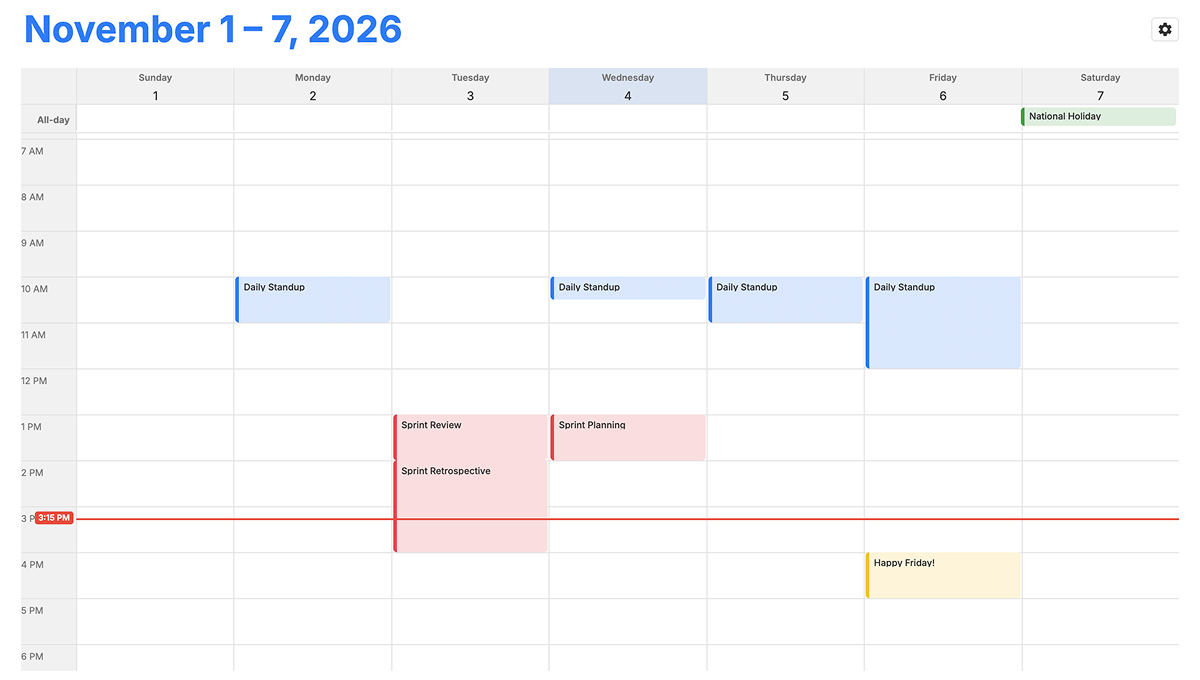
Show your Tableau dates as events on a calendar you can view by year, month or week.
Trusted by 1000+ teams, including Tableau themselves.






About Calendar
Calendar shows your Tableau dates as events on a calendar you can view by year, month or week. Drag in a start date, then add an end date and a type to color your events.
Use it for team schedules, release plans, time off, deadlines or any list of dated events. Your users can switch between views, move from one period to the next, and hover any event for its details, right inside your dashboard.
See Calendar in action
Everything you need
- Year, Month and Week views, with buttons so users can switch, or one fixed view
- Events colored by type, with an optional end time and a label
- Opens on today, the next event, or the first event
- Tooltips with any extra fields from Detail or Tooltip
- Week start, weekend days, 12h or 24h time and colors for each view
When Calendar shines
- Team schedules, meetings and time off
- Release plans, deadlines and milestones
- Any list of dated events
Setup in Tableau
Two short phases: add the Viz Extension to your workbook once, then drop the relevant fields on the new Marks Card.
Add the extension to Tableau
- Open the Marks card and choose Add Extension On any Tableau worksheet (Desktop, Cloud or Server), open the Marks card dropdown and select "Add Extension". A new dialog will list available Viz Extensions.
- Pick the Exchange listing or upload the .trex file Either choose "Access Extensions on the Exchange" for the free hosted build, or click "Access local extensions" and upload the .trex file you received with your LaDataViz license.
- Review and accept the data-access prompt Tableau will ask you to allow the extension to read the worksheet's aggregated data. Accept it — a new Viz Extension Marks Card will appear next to Color, Size, Tooltip, etc.
Configure Calendar
- Drag a Date/Datetime field on Start Time.
- (Optional) Drag a Date/Datetime field on End Time. If omitted, events with a time last 1 hour, and events with only a date last all day.
- (Optional) Drag a Dimension on Type to color events, and a Dimension on Text to label each event.
- (Optional) Drag fields on Detail or Tooltip to show extra columns in the event tooltip.
- Click Format Extension to configure the calendar.
Enterprise-grade by design
Every LaDataViz Viz Extension is built so your data never leaves Tableau. Here's exactly how we keep it that way.
Ready to add Calendar to your dashboard?
Related viz extensions
Other extensions in the time-series family.




Questions about Calendar?
Thanks for reaching out! You'll hear back from us soon.
Oops! Something went wrong while submitting the form.
We use cookies to measure site usage with Google Analytics. Nothing is measured until you accept. Cookie policy